You can use heading tags in HTML to make your article easier to scan, but did you know they also help SEO?
Let’s review what heading tags are, how to add headings tags, why they are important for SEO, and the best practices for using headings.
What are heading tags in HTML?
Headings tags in HTML are the code that tells the web browser how to display the text on your webpage.
HTML heading tags make the style (size, font changes, spacing, and paragraph breaks) different for each type of heading (H1-H6).
The above heading in HTML would be:
<h2>What are heading tags in HTML?</h2>
Heading tags in HTML are used as the title (H1) or subtitles (H2-H6) to break up text and tell the reader what content they can expect to find in that section.
How many heading tags are there in HTML?
There are 6 heading tags in HTML: <h1>, <h2>, <h3>, <h4>, <h5>, and <h6>.
Headings tags in HTML give readers an outline of the content that the post covers.
H1
H1 tags show the most important text for readers and SEO.
They show the title of the content to readers and it also tells Google what the page is about.
Your H1 is typically what the reader will see on a search engine result (like Google or Bing), so your title should tell them what the post is about and make them want to click and view the page.
H2
H2 tags are key subheadings. These would be the chapters of your book or a way to divide your content into related sections.
H3-H6
H3-H6 tags add sections to those subheadings for further structure. They allow you to break up big blocks of text further and make the page or article more scannable.
Heading tags examples
Let’s look at some examples of headings tags.
Heading tags in HTML
In HTML, the heading tags would look like this:
<h1>Heading 1</h1>
<h2>Heading 2</h2>
<h3>Heading 3</h3>
<h4>Heading 4</h4>
<h5>Heading 5</h5>
<h6>Heading 6</h6>
Headings appearance in an article
In the article, the headings would look like this:
Heading 1
Heading 2
Heading 3
Heading 4
Heading 5
Heading 6
Article example of heading tags
One of our posts is comparing Social Media PPC and Search Engine PPC, and we structured it using these headings:
- H1: The Difference Between Social Media PPC and Search Engine PPC
- H2: What is Social Media PPC?
- H2: What is Search Engine PPC?
- H2: Social Media PPC vs. Search PPC
- H3: Social Media PPC Pros & Cons
- H4: Pros
- H4: Cons
- H3: Search Engine PPC Pros & Cons
- H4: Pros
- H4: Cons
- H3: Social Media PPC Pros & Cons
- H2: Why Would Someone Choose Either One?
- H2: Pricing Points
- H2: Which Option Works For You?
Page example of heading tags
An important page on our website is our custom website design service page, which is structured as follows:
- Need a Custom Website For Your Business?
- Benefits of a Custom Website
- Increase Traffic & Conversions
- Establish Your Brand Authority
- Improve SEO & Search Engine Rankings
- Featured Products
- Responsive Website Design
- Our 4D Process
- 1. Discovery
- 2. Design
- 3. Development
- 4. Deployment
- Frequently Asked Questions
- How much does a new website cost?
- How long does it take for you to build my website?
- What is your website design process?
- What frameworks do you build websites on?
- Why should I buy a website from Awebco?
- Benefits of a Custom Website
How to add headings
You can add headings by using the headings block in the WordPress Gutenberg editor, using the classic Visual Editor, or by using HTML in the text editor.
Let’s look at how you can add heading tags no matter which version you’re using.
WordPress visual editor (Gutenberg) heading tags
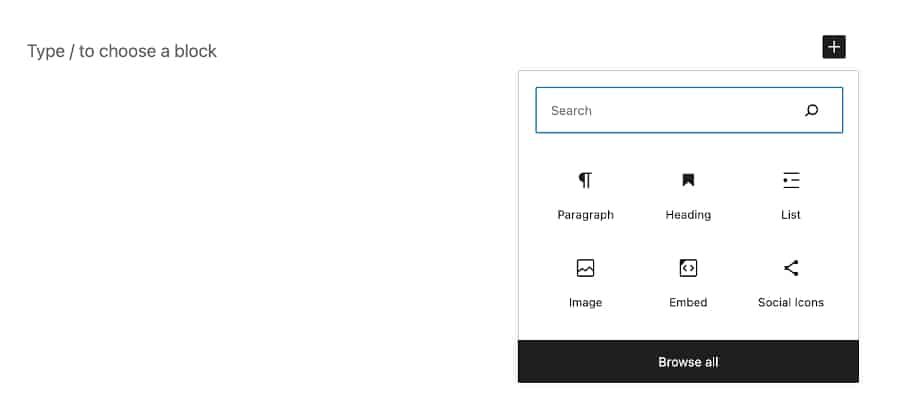
Click the + to add a new block. If you don’t see the “Heading” block, you can search for it:
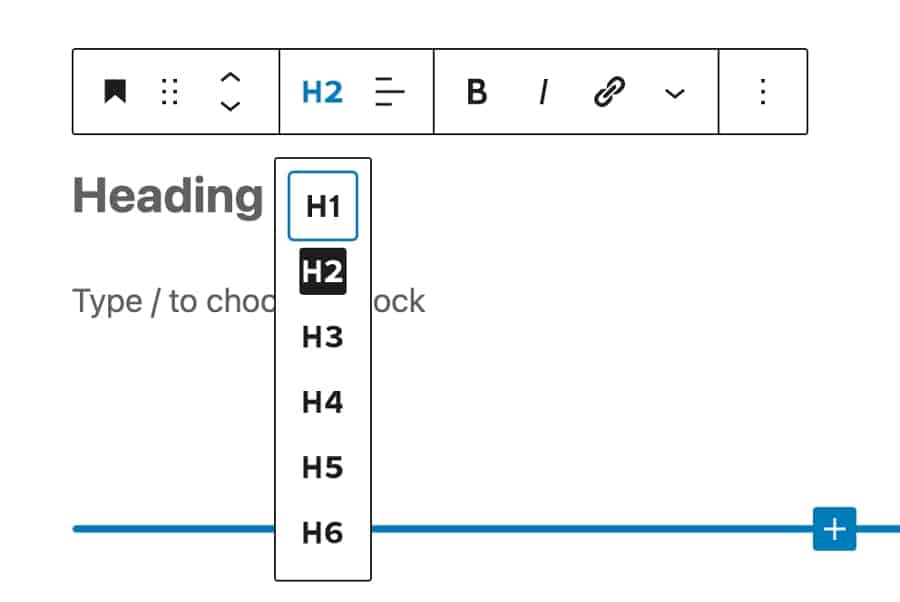
Once you have a heading block, you can pick which heading you want (H1-H6) from the dropdown list:
WordPress Visual Editor (classic)
Not everyone has converted to (or accepted) the new Gutenberg editor yet.
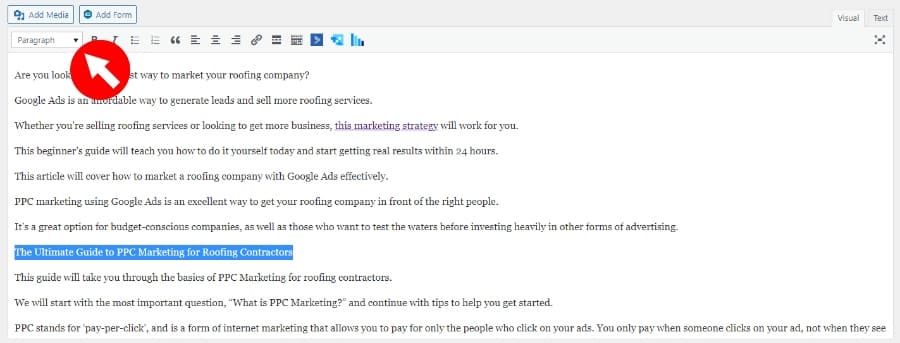
To set your heading tags using the classic WordPress visual editor, you just need to highlight your text and click on the dropdown box that says ‘Paragraph’ at the top left of the page.
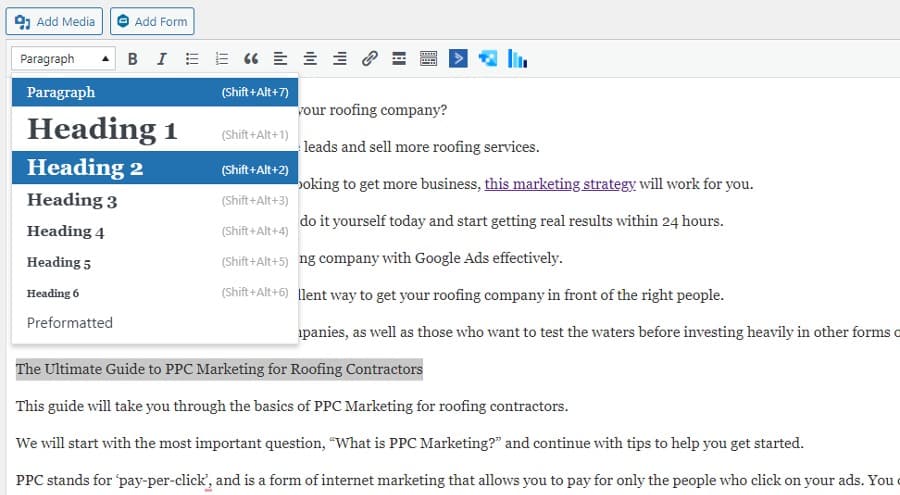
Then depending on where you are in the structure of your content, you can select the heading you’d like to use.
In this example, we are going to use an H2 tag since it is the first heading in our content after our H1, which is the title.
WordPress Text Editor (HTML)
For those who prefer working more directly with HTML and the basic formatting of the WordPress text editor, you will simply be manually adding your brackets.
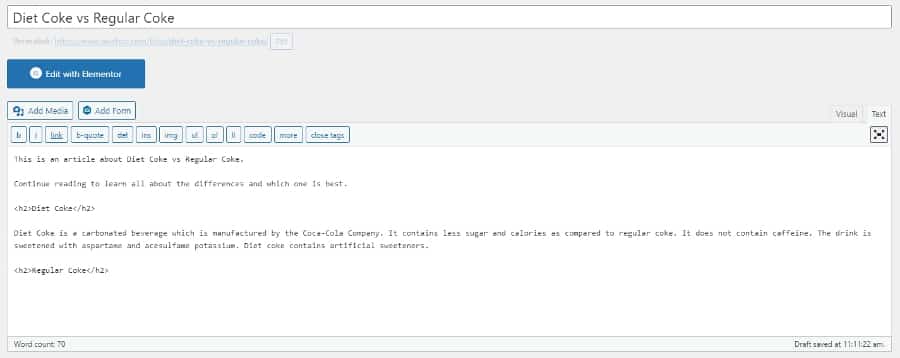
Why are HTML headings important for SEO?
Headings are important for SEO because they make your articles and pages accessible, improve readability, and help search engine bots crawl and understand your post.
Accessibility
Since headings tags are in HTML, screen readers can read them and understand the page structure.
Screen readers can read the headings out loud to people that are visually impaired so that they can decide if they want to read/listen to the entire article.
Headers also help with navigation so that screen readers can skip to specific headings.
Readability
Headings serve as an outline for your page content. They highlight the important information you will cover and what is included in each section.
They also break up chunks of text and make the post easier to scan.
This is important for SEO because Google counts user experience as a ranking factor.
It also helps SEO because it gives readers a chance to find what they are looking for, therefore lowering your bounce rate. Visitors can go directly to the section that answers their question.
Even more important, it means that visitors are less likely to leave your site and go back to Google to click on another article to try to find what they are looking for, which would tell Google that your article doesn’t satisfy the user’s search intent.
Crawling your post
Heading tags in HTML are important for SEO because they help search engines, such as Google, quickly crawl (scan) your post and understand the structure and hierarchy of the post, what content is covered, and important keywords.
SEO Best Practices for Heading Tags
Now that we know what heading tags are, why they are important, and how to add them, let’s look at the best practices to follow.
Only use one H1 tag
While Google says that you are “allowed” to use more than one H1, only using one H1 tag is the best practice.
This makes it easier for screen readers to read and ensures that you don’t confuse the reader (or Google) about the main topic of the content.
Use the proper hierarchical order
Headings tags in HTML follow a top-down hierarchy from <h1> to <h6>.
This means that you would not want to skip heading tags and go from an H2 to an H4. Doing this would break the hierarchy and be a bad SEO practice.
Instead, you would go from an H2 to an H3 and then have an H4 below that.
Use your keywords in your headings
Include your keywords in your headings to tell Google and your readers what the page and each section are about.
However, make sure that you are using them naturally (only when the section is actually about that) and not keyword stuffing.
Optimize for featured snippets
If you are writing for a paragraph featured snippet, you can make the search query (People also ask or Related Searches can be great places to find these search queries) a heading and answer the query below that in 200-300 characters.
This highlights to Google that you are answering this question.
If your post is a how-to post, make each step a heading. Google can use this as a list featured snippet.
Stay consistent with your formatting
It doesn’t matter if you use book title case and only capitalize the first word of a heading, but once you decide on a style, use that style across all the posts and pages on your website.
Additionally, do not use headings as a way to style your text (using a heading tag to make any text big or bold).
Use headings as a way to structure and outline your post.
Check your heading tags
Now that you know how to make heading tags and the best SEO practices, check that your headings are optimized on your website.
If you need help with your headings or any other SEO service, AWEBCO can tailor a plan to meet your needs. Give us a call at 217-903-5999, or send us a message!